Flash guide · Method 1 of 5
Flash with the web flasher
The web flasher is the easiest way to put CrossPoint, or any firmware, on an unlocked Xteink X3 or X4: open a page in Chrome or Edge, plug in a USB-C cable, click Flash. Nothing to install, about five minutes end to end.
Requires an unlocked Xteink
If the flasher can't detect your device, you may have a locked unit. Use the SD card or OTA Unlocker method instead.
On the new X4 Pro? Beta only
The X4 Pro has no USB-C port (it charges over a pogo-pin adapter), and CrossPoint doesn't support it in the stable build yet — as of v1.5.0 a tester beta lives on the flasher site. Flash it only if you can tolerate rough edges; see the X4 Pro firmware note.
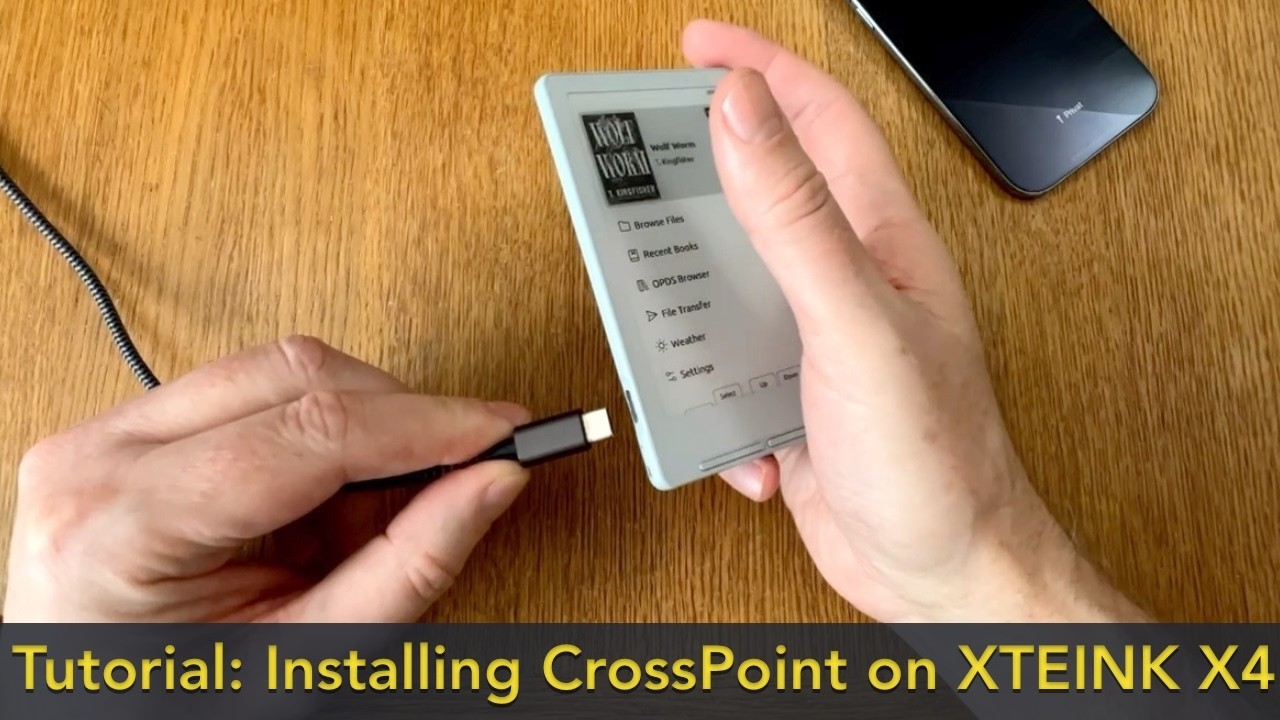
You need four things before you start:
- Desktop Chrome or Edge. Firefox is inconsistent, and Safari has no WebSerial support.
- A USB-C DATA cable, not a charge-only one (see step 1).
- The Xteink awake on its home screen, not asleep or in a reading session.
- An unlocked unit. The flasher has to be able to detect the device.
Four steps, about five minutes end to end.
-
Connect a USB-C DATA cable and wake the device
A charge-only cable silently fails, and a sleeping reader never registers as a serial port. This is the #1 mistake new owners make.
-
Open the web flasher in Chrome or Edge
-
Pick your model and firmware, then click Flash
Select your Xteink in the browser's serial picker when it appears.
-
Press Reset, then hold Power 3–5 seconds to boot
The Xteink does not auto-reboot after a flash. A blank screen at this point usually just means it hasn't been rebooted yet.
Want a safety net? Before you click Flash, open "Full flash controls → Save full flash" to back up your current firmware (~25 min). You can restore the exact prior state later.
Flashed and booted? Load your books next
The flash was the hard part. Now send your library over with Calibre or OPDS, then add custom fonts, themes and sleep screens.
The common web-flasher failures, and what fixes each one:
Device not detected
Flash stuck at 0% or "connecting…"
Blank screen after flashing completes
Flasher says connected but flashing fails
"Access denied" in browser
Still stuck, or hit a different error? Browse every fix in the Xteink firmware help & FAQ, searchable by problem.