Main pick
CrossPoint Reader
v1.5.0 · ~7k★ · MITThe main community firmware
Best for: Almost everyone. If you are not sure what to flash, flash this.
- A real EPUB 2/3 engine: justification, hyphenation, footnotes, images, bookmarks, go-to-percent.
- Wireless book transfer (web upload UI, WebDAV, OPDS, Calibre wireless) plus KOReader progress sync.
- Custom fonts, themes (Classic, Lyra, Lyra Extended, RoundedRaff), Focus Reading, RTL, 24+ UI languages.
- v1.5.0 adds an offline StarDict dictionary, EPUB dark mode, Arabic/Farsi/Urdu RTL, and big books that open in seconds.
- Bluetooth page-turner remotes are supported through a separate opt-in beta build on the flasher — stable builds drop Bluetooth to free RAM.
- On-device OTA + SD-card updates. Tilt-to-turn pages is an X3-only bonus.
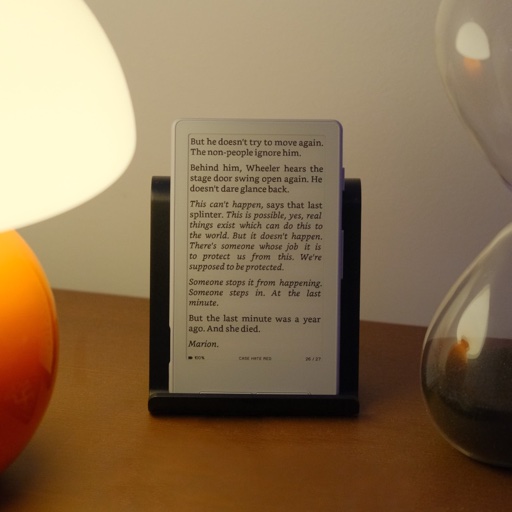
CrossPoint Reader runs on the Xteink X3 and X4. The install is 5 steps via web flasher, start to finish:
- 1
Connect the X3/X4 by USB-C and wake it (a sleeping device won’t appear as a serial port).
- 2
In Chrome or Edge, open crosspointreader.com/#flash-tools.
- 3
Pick your model (X4 480×800 or X3 528×792) and choose the official CrossPoint release.
- 4
Flash, pick the device in the serial-port prompt, and wait ~1–2 min. Coming from stock you may need to flash twice.
- 5
When it finishes: press Reset, then hold Power 3–5s to boot. A blank screen here is almost always the missing reboot, not a brick.
First flash? The mechanics are the same across every fork. Compare the five flashing methods on the directory, or follow the step-by-step flash CrossPoint without panicking guide.
CrossPoint Reader is a medium-risk flash. Settle two things before you touch the flasher: whether your Xteink shipped locked, and how you'd get back.
Locked devices & CrossPoint Reader
One of the two firmwares the OTA Unlocker officially supports (with CrossInk), so it is the safe choice for a locked unit. Locked X3: flash directly via the SD-card method (update.bin + left button + power) or the OTA Unlocker. Locked X4: use the OTA Unlocker to get CrossPoint on (the X3 SD button combo does not engage from stock on the X4); then its in-app SD update handles future updates. Neither path re-enables USB.
Not sure if your unit is locked? Read the locked-device safety brief, or the full locked vs unlocked buying guide.
How to revert CrossPoint Reader
For CrossPoint Reader: Re-flash stock from the same web flasher, or restore a full-flash backup. Bootloop after a flash? Press Reset, then hold Back + Power to reach the home screen. Crashy? Delete the .crosspoint folder on the SD card.
On an unlocked Xteink you have three ways back:
- 1Re-flash stock. The same web flasher offers official Xteink firmware.
- 2Restore a backup. “Write full flash from file” brings back the exact prior state, if you saved one first.
- 3Swap boot partition. A quick rollback at xteink.dve.al/debug.
On a locked unit there is no USB safety net. That is why locked devices stick to CrossPoint/CrossInk.
The one caveat: Locked retail (AliExpress) units need the OTA Unlocker (X4) or SD-card route (X3) — see the locked-device section. No PDF rendering by design (convert with an .xtc tool).
Not sure CrossPoint Reader is the right pick? Take the 30-second firmware chooser.
CrossInk
Typography + reading stats fork
Reading stats, Bionic Reading, glyph fixes
Full guidePapyrix
More formats, one binary for both devices
FB2 / Markdown / HTML, multi-script
Full guideCrossPet
Gamified reading + Vietnamese
Vietnamese UI + gamified virtual pet & games
Full guideMicroreader
Deliberately minimal, EPUB-only
Minimal, distraction-free EPUB-only
Full guideAvesO3
For AO3 fanfiction readers
AO3 fanfiction workflow
Full guideSUMI
Offline apps, dictionary & Lua plugins
Offline apps, dictionary, Lua plugins, emulator
Full guideCrossPoint Reader details verified August 11, 2026 against its GitHub repo, README and releases. PocketInk is independent and not affiliated with Xteink. Firmware names and versions change quickly — check the repo for the latest.