Why Your Xteink Won't Open the Book You Bought
A store purchase can fail on the Xteink X3, X4, or X4 Pro because it is protected, the wrong file type, or not a book file yet. Here is the legal EPUB path.
The published specification blocks for the X3, X4, and X4 Pro list EPUB and TXT as document formats. A book bought from a reading store may instead be protected, in the wrong file type, or not be a usable book file yet. Copying that file to a card does not turn it into an EPUB.
How the file gets onto the reader is covered in the Xteink transfer guide. This page answers the more frustrating part: why a purchase can arrive on your computer and still refuse to become a readable Xteink book.
The short answer
Find a plain EPUB or TXT file that you are allowed to copy. Here, DRM-protected means the ebook still needs the seller’s licensed reading setup. Keep using that route or get a lawful DRM-free edition. Calibre can organize and convert legal plain files. It does not open or convert DRM-protected ebooks.
Start with the file, not the cable
Look at the text after the last dot in the file name. An .epub is a book-file candidate, an .acsm is a license file, and a protected purchase may have a store-specific reading route. The suffix alone does not prove that an EPUB will work, but it tells you where to start.
Plain EPUB Ready
A file you can save and copy. This is the starting point for Xteink transfer.
Protected purchase Needs licensed setup
Copying it to storage does not make it a plain EPUB.
ACSM download
A license file, not the ebook itself. It is not a plain EPUB.
An .acsm ending is the fastest clue. Kobo describes ACSM as a DRM license, not the book. Google Play gives the same warning: an export can return ACSM, some publishers do not allow exports, and rentals cannot be exported. Do not put an ACSM file on the Xteink and expect a title to appear.
If a file already ends in .epub, test it in Calibre before transfer. If it opens there, move to the transfer guide. If it still does not appear or open after a fresh transfer, use the guide’s troubleshooting rather than assuming every EPUB problem is DRM.
What the Xteink X3, X4, and X4 Pro actually open
For stock firmware, the software that shipped on the reader, make EPUB your target. The specification blocks for the X3, X4, and X4 Pro each list EPUB and TXT as document formats.
CrossPoint is community firmware. Its published list is still a file list: .epub, .xtc and .xtch, .txt, and .bmp. PDF is not in that list. That is a reason to prepare an EPUB before transfer, not a promise that a random document will read well after conversion.
The X3 and X4 Pro product pages are not perfectly consistent: a marketing comparison table also lists MOBI and PDF, while their specification blocks list EPUB and TXT. Native MOBI and PDF support is therefore unclear. Treat EPUB as the safe target and do not assume a Kindle .mobi or a PDF will open just because it exists on the card.
Best starting point
Plain EPUB or TXT
Save it locally, then use the transfer method that matches your device and firmware.
Use care
DRM-free MOBI or PDF
Only work with a file you may legally convert. Make EPUB the destination and check the result before loading a whole library.
Not a transfer file
ACSM or a protected purchase
Follow the store's documented reading route, or look for a DRM-free edition from the publisher or another lawful store.
Will a Kindle purchase open on an Xteink?
A Kindle purchase becomes a Xteink file only when Amazon offers its official DRM-free EPUB or PDF download for that title. Since January 20, 2026, verified purchasers can download those files from Manage Your Content and Devices when the title is confirmed DRM-free. That option does not apply to Kindle Unlimited or other borrowed titles, even when the title is DRM-free. Amazon’s DRM guidance explains the limits.
Check the official exception:
- Open Manage Your Content and Devices for the title you bought. Look for Amazon’s own DRM-free EPUB or PDF download option.
- Use an eligible EPUB with the transfer guide. Once the file is plain EPUB, Xteink transfer is ordinary file handling.
- Treat an eligible PDF as a conversion candidate, not a promised reading file. The stock specifications do not promise native PDF reading. If you have the right to convert the DRM-free PDF, use Calibre to make EPUB and inspect the result first.
- Keep using Kindle if Amazon does not offer a DRM-free download. A purchase with no official DRM-free download does not give the Xteink a portable reading file.
Amazon’s official download is the Kindle path this guide covers. It is title-specific, so a book visible in your Amazon account is not enough on its own.
What about Kobo, Apple Books, and Google Play purchases?
Kobo says most Kobo Store books are DRM-protected. Its own help separates the useful exception from the usual case: a DRM-free EPUB or PDF can be copied directly, while a protected title follows Kobo’s Adobe Digital Editions route. If Kobo gives you a plain DRM-free EPUB, transfer it. This guide begins only when you have that plain file.
Google Play follows the same practical rule. Its export help says a download can be ACSM, and an export may not be available for every book. This guide begins only when you have a plain DRM-free EPUB. For anything else, use Google Play’s documented reading route.
Apple Books needs the same honest test. This is about a purchase made in Apple Books, not an EPUB you imported there yourself. If the purchase does not give you a DRM-free EPUB, keep reading it in Apple Books or obtain a lawful DRM-free edition.
What Calibre can and cannot do
Calibre is useful after you have a file you may copy. Calibre can organize a library and convert DRM-free files into EPUB when that makes sense for the Xteink. Calibre’s own manual says it does not open, view, or convert DRM-protected ebooks.
Use Calibre for a DRM-free MOBI you own, a plain EPUB that needs metadata cleanup, or a folder of public-domain books. If Calibre cannot open the file because it is protected, read that purchase on its intended device or find a legal DRM-free copy.
Where to find legal files for the Xteink
The reliable answer is to choose a source that gives you a plain file from the start. Choose an EPUB download when the source offers one.
- Project Gutenberg offers free ebooks. Standard Ebooks makes its editions available free of cost and describes its copyright position for the United States. Check each title’s rights where you live.
- Smashwords sells DRM-free ebooks.
- Humble Bundle has DRM-free content for many purchases, but confirm that a specific bundle includes an EPUB before buying it for Xteink.
- An eligible Amazon purchase can use Amazon’s own DRM-free EPUB download path.
- Some library titles are Open EPUB, not Adobe EPUB. The narrow exception and the reader choices around it are in Can Xteink use Libby?.
Put a DRM-free EPUB on the reader
Once you have a plain EPUB, this becomes a transfer task rather than a store problem. The transfer guide covers its X3 and X4 routes. X4 Pro stock firmware has its own USB Mode route.
Steps:
- Confirm that the file is a plain EPUB you may copy. Start with a public-domain download, a verified DRM-free purchase, or Amazon’s eligible EPUB option.
- Prepare the file in Calibre only if it is DRM-free. Convert a compatible plain file to EPUB if needed, then open the result on your computer before transfer.
- Use the matching transfer route. Follow the transfer guide for its X3, X4, or CrossPoint method. On stock X4 Pro, USB Mode can make the device appear on your computer for copying.
When another reader is the right tool
Keep a Kindle, Kobo, or Apple device if that is where your paid library lives. That is not a setup failure. Xteink works best as a pocket reader for files you can actually save as EPUB or TXT.
If you are deciding which reader should own your next purchase, see the Xteink X4 vs Kindle Paperwhite comparison and the Libby guide. Use each device for the library it can actually open.
PocketInk is independent and not affiliated with Xteink.
FAQ
Why won't my Kindle book open on the Xteink X4?
A Kindle purchase does not necessarily come as a plain EPUB you can copy to the Xteink. Check Amazon's own DRM guidance for the limited download option. If it is not available for that title, read the purchase in Kindle or use a lawful DRM-free edition instead.
I downloaded an ACSM file. What is it?
An ACSM file is a DRM license, not the ebook. This guide needs a plain DRM-free EPUB before the transfer steps begin.
Will CrossPoint make a Kindle or Kobo purchase work?
Not by itself. CrossPoint's published format list includes EPUB, XTC, TXT, and BMP. This article still needs a plain DRM-free EPUB before its transfer steps begin.
Can Calibre convert my Kindle library for the X3?
Calibre can organize and convert DRM-free files. It does not open, view, or convert DRM-protected ebooks. Use Amazon's official DRM-free EPUB download when a title qualifies, or keep the purchase in Kindle.
Does the X4 Pro USB Mode solve the problem?
USB Mode changes how you copy a legal file to the X4 Pro. It does not turn a non-EPUB file into an EPUB.
My file already ends in EPUB. What now?
Open it in Calibre first. If it opens, use the transfer guide and its troubleshooting steps. If it does not open, get a fresh copy from the store or source before treating the problem as a Xteink fault.
What about Libby?
Library loans are a separate question. OverDrive distinguishes Adobe EPUB, which needs authorization, and Open EPUB, which does not. Read Can Xteink use Libby? before counting on library books as your Xteink source.
Keep reading
Guides that pick up where this one leaves off.
How to Transfer Books to Xteink X4 (SD, Wi-Fi, App)
USB-C on the Xteink X4 is charge-only. Load books with the microSD card, Wi-Fi upload, CrossPoint Sync, or Calibre. Formats, Kindle files, and fixes.
Xteink First Week Setup Checklist (X3 and X4)
Xteink first week setup for the X3 and X4: inspect the unit, load 3 to 6 clean books, pick one transfer path, flash only with a reason, then protect and tune so you actually read.
Owner kit
A light and a case after setup
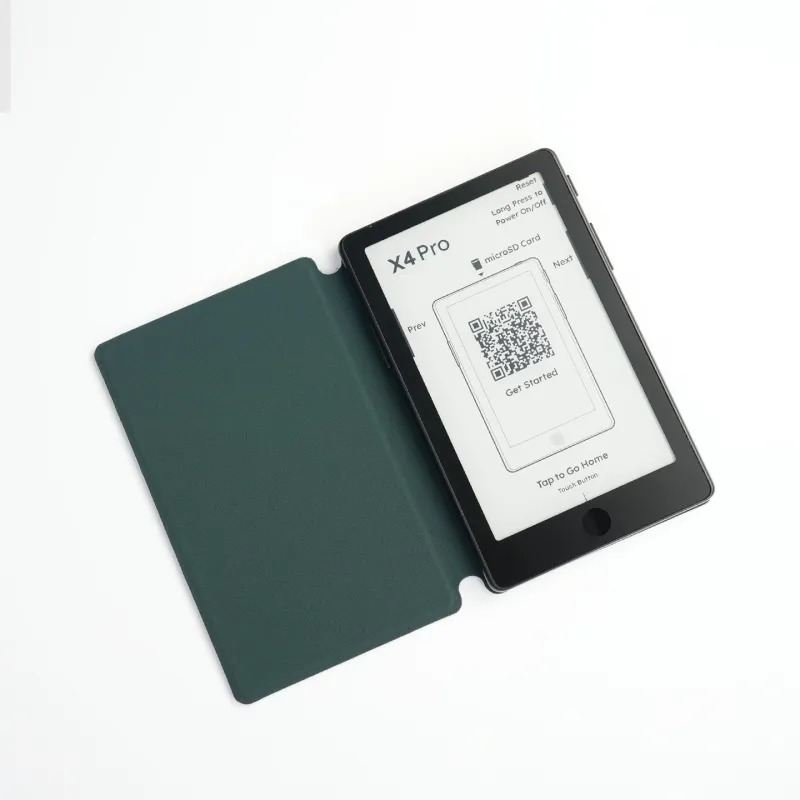
X3 and X4 ship without a front light. A clip-on is the usual first add-on.
Kit it on accessories .